How to Use PSD Mockups in Canva (The 3-Step Bridge Method)
You downloaded a beautiful free PSD mockup, but Canva says "unsupported file." Here is the exact 3-step bridge method to edit PSD smart objects for free and bring your realistic mockups into Canva in under 60 seconds.
A
Abdul Manan
·June 21, 2026·7 min read·92
You found the perfect free PSD mockup. You click upload in Canva, and then it happens.
"Unsupported file type."
Canva cannot read Photoshop smart objects. It flattens the PSD into a single locked image, and your design area disappears completely. It is the single most frustrating dead-end for millions of designers who build their brands in Canva but need professional mockups to present their work.
But there is a clean, free workaround that takes under 60 seconds. It is called the Bridge Method, and it lets you edit any PSD smart object mockup from MockupIdea and seamlessly drop the finished result right back into your Canva workspace.
Here is exactly how to do it, step by step.
Why Canva Cannot Open PSD Mockups
To fix the problem, you need to understand why it happens.
A PSD mockup uses a feature called smart objects. A smart object is a special layer that acts like a container. You put your flat design inside the container, and the Photoshop file automatically wraps it around the product with realistic perspective, lighting, and shadows.
Canva is a brilliant design tool, but it does not have smart object technology. When Canva tries to open a PSD file, it ignores the smart objects and flattens everything into one solid image. Your editable design area is gone.
The Bridge Method solves this by using a free tool that speaks Photoshop's language, doing the hard work before you bring the image into Canva.
The 3-Step Bridge Method Explained
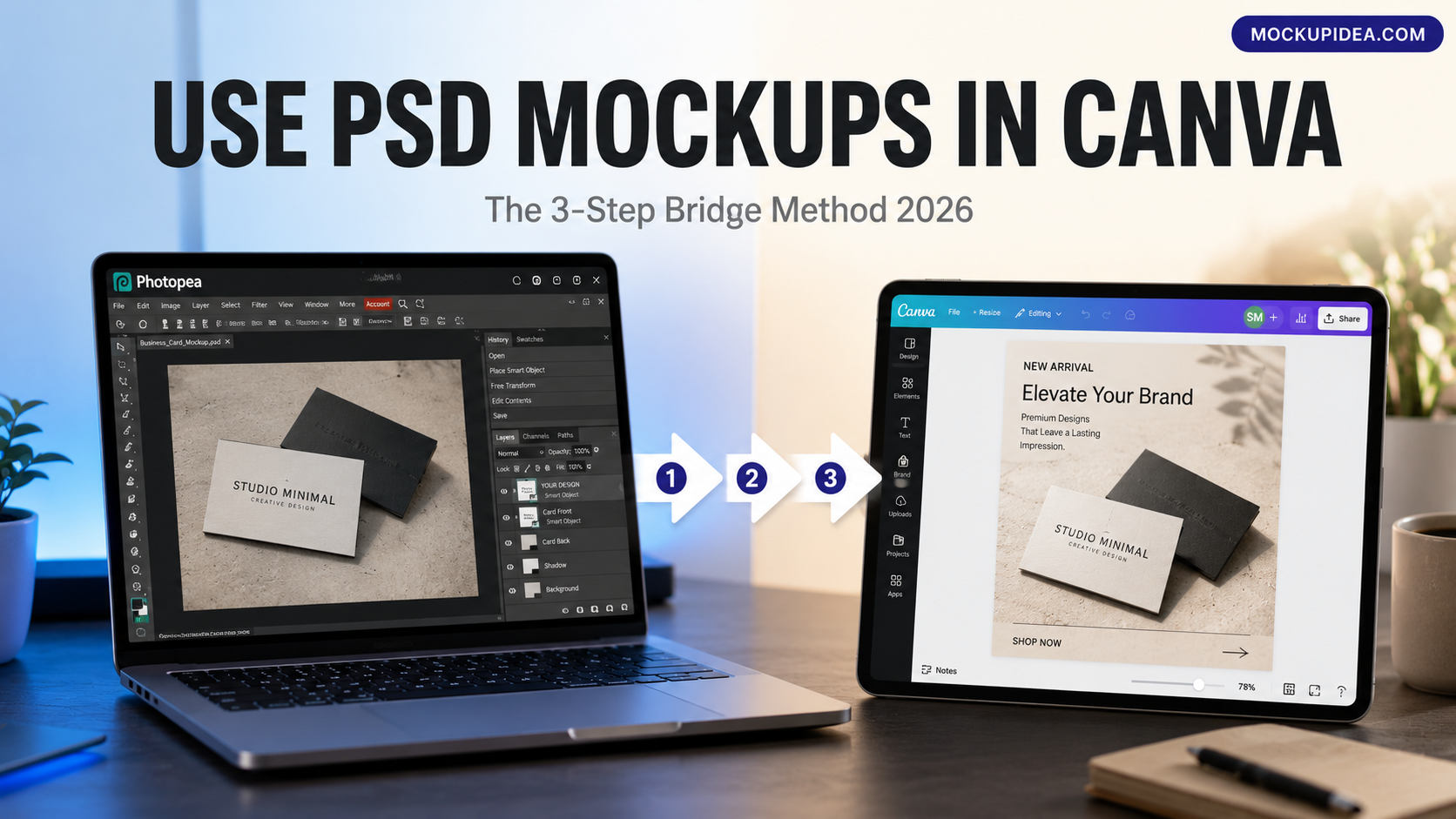
This method uses Photopea as the bridge between your PSD file and Canva. Photopea is a completely free, browser-based editor that handles smart objects identically to Photoshop. No download, no sign-up, no cost.
Step 1: Download Your Free PSD Mockup
Go to MockupIdea and download the free PSD mockup you need. Every file is free, requires no registration, and includes full commercial use.
Open your browser and go to photopea.com. It looks and works exactly like Photoshop, but it runs entirely online for free.
In Photopea, go to File > Open and select the PSD mockup you just downloaded from MockupIdea.
Look at the Layers panel on the right. Find the layer labelled "Place Design Here" or "Your Design Here". It will have a small page icon in the corner, indicating it is a smart object.
Double-click the thumbnail of that smart object layer. A new tab will open in Photopea. This is your blank canvas, perfectly sized for the mockup.
Go to File > Open & Place, and select your own design file (PNG, JPG, or SVG) from your computer. Scale it to fit the canvas, then press Enter.
Hit Ctrl+S (Windows) or Cmd+S (Mac) to save. Do not skip this step. This is what locks your design into the mockup's realistic perspective and lighting.
Close the smart object tab. You will now see your design realistically placed on the product in the main mockup file.
Step 3: Export and Bring Into Canva
Now you bridge the finished mockup into Canva.
In Photopea, go to File > Export As > PNG. Set the scale to 2x for a crisp, high-resolution image, and click Save.
Open your Canva project.
Go to Uploads on the left sidebar and click Upload files. Select the PNG you just exported from Photopea.
Drag your mockup into your Canva canvas. You can now use Canva's built-in tools to add text, graphics, or resize it for social media and presentations.
You now have a photorealistic, professional PSD mockup living inside your Canva workflow, with zero quality lost.
The Best Free Mockups for Canva Designers in 2026
Now that you know the Bridge Method, here are the highest-impact free PSD mockups that Canva designers are using to upgrade their client work and product listings right now:
1. Business Card on Marble Slab — Tropical Shadow
The most visually striking card scene for brand identity presentations. Two overlapping cards on pristine marble with dramatic tropical shadows.
Download Free PSD
2. Two-Tone Coffee Mug on Marble
A Canva staple. Perfect for print-on-demand sellers who need to show their mug designs on a premium, photorealistic surface without shooting photos.
Download Free PSD
3. Pullover Hoodie Mockup — Flat Lay Studio
The highest-demand apparel mockup for streetwear and POD brands. A clean, front-facing flat lay that exports beautifully into Canva for Instagram posts and Shopify banners.
Download Free PSD
4. 6x9 Hardcover Book — Three-Quarter View
Essential for self-publishing authors who design their covers in Canva. Show your book with realistic page edges and studio lighting.
Download Free PSD
5. Stationery Branding Set — Letterhead, Envelope, Card
The ultimate brand identity image. Drop your logo into the smart objects, export, and build an entire brand guidelines deck inside Canva.
Download Free PSD
Why Not Just Use Canva's Built-In Mockups?
Canva has added some native mockup features, but they have serious limitations for professional work in 2026.
They distort your proportions. Canva's auto-fit often stretches or squashes your design to fill a generic shape, which looks unnatural.
They lack scene depth. Canva mockups are often floating on flat backgrounds with no realistic shadows, textures, or environmental context.
They cannot match PSD lighting. PSD smart objects are built from real photographs. The way the light wraps around a curve on a coffee mug or a cosmetic tube in a PSD file cannot be replicated by Canva's automated tools.
The Bridge Method gives you the photorealism of a PSD and the convenience of Canva in a single workflow.
Frequently Asked Questions
Can I Edit PSD Files Directly in Canva?
No. Canva cannot read or edit Photoshop smart object layers. If you upload a PSD to Canva, it flattens the file and removes your ability to place your design inside the mockup. You must use the Bridge Method with Photopea to edit the smart object first, then export it as a PNG for Canva.
Is Photopea Really Free to Use?
Yes. Photopea at photopea.com is completely free to use in your browser. It does not require an account, a subscription, or a download. It supports PSD smart objects, layers, and masks exactly like Adobe Photoshop.
Why Does My Mockup Look Blurry in Canva?
You likely exported at 1x scale from Photopea. Always export your PNG at 2x scale before uploading to Canva. This gives you a high-resolution file that stays crisp when you resize it for social media, presentations, or print.
Can I Use Free PSD Mockups for Commercial Client Work in Canva?
Yes. MockupIdea grants full commercial use on every free file with no attribution required. You can use the exported images in your Canva client projects, social media posts, Shopify stores, and Etsy listings without restriction.
Does the Bridge Method Work on a Phone or Tablet?
Photopea works in mobile browsers, but editing smart objects is much easier on a desktop or laptop screen where you can see the Layers panel and manage multiple tabs. For the best results, use the Bridge Method on a computer, then open the Canva app on your phone to finish your post.
Stop Letting "Unsupported File" Ruin Your Workflow
You do not need Photoshop to use professional mockups, and you do not have to settle for Canva's basic built-in scenes.
The Bridge Method takes under 60 seconds. Edit your smart object in Photopea, export the PNG, and build the rest of your project in Canva. Photorealistic scenes, accurate brand colors, and zero software cost.
Browse thousands of free PSD mockups built from real photography at MockupIdea. Every file is free, watermark-free, and cleared for full commercial use.