
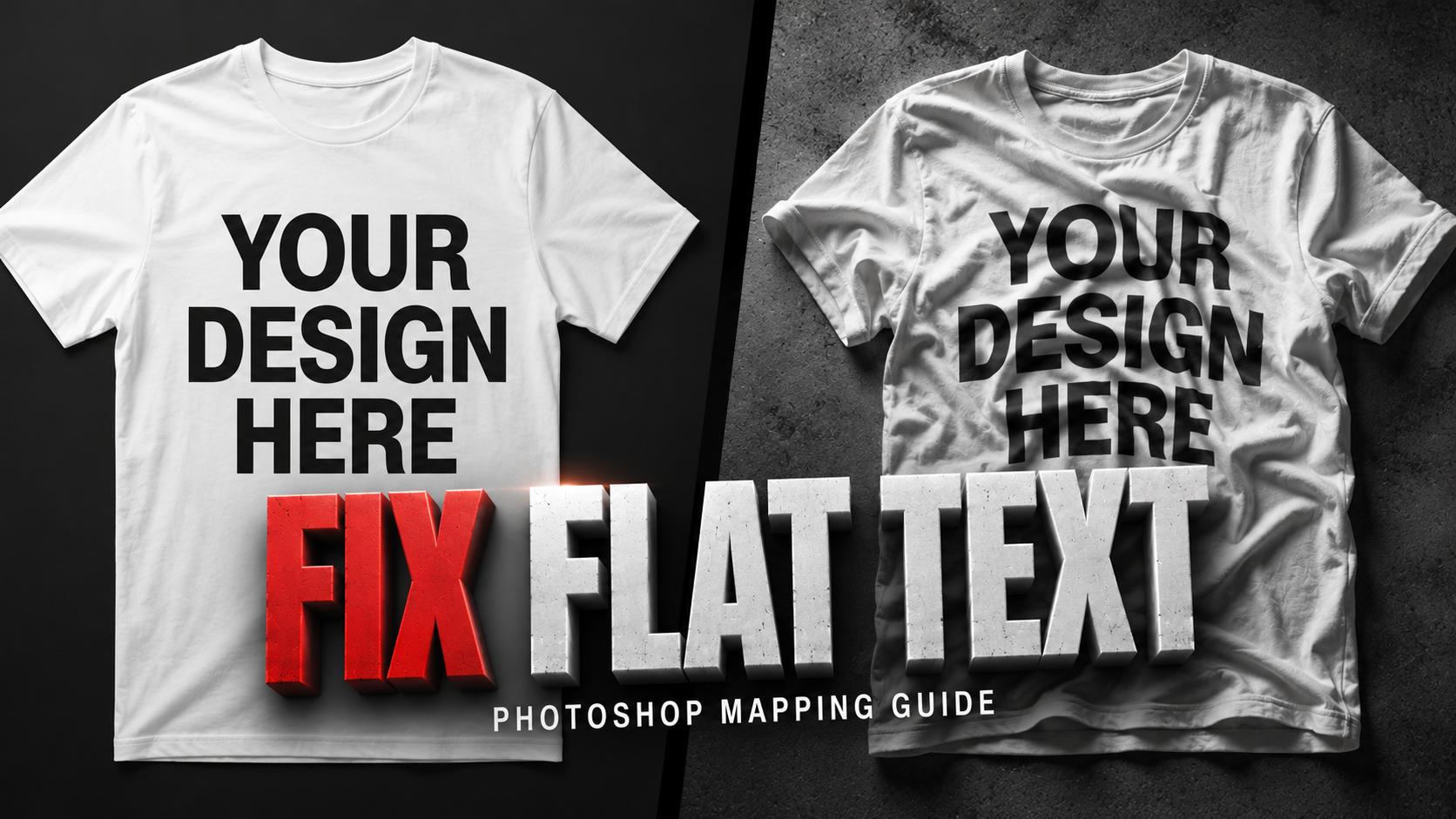
How to Fix Flat AI Text on Mockups: The Step-by-Step Photoshop Guide
Generative AI can now create flawless typography, but pasting that flat text onto a realistic product mockup often results in a fake, "floating" appearance. If you want to pass the subconscious physics test and boost your conversion rates, you must master displacement mapping. Here is the exact 2026 workflow to fix flat AI text forever.
In 2026, AI models like GPT-Image-2 and Ideogram 3 output flawless, perfectly spelled typography. However, the moment you drag and drop that AI-generated text onto a product photo, a major problem arises: it looks entirely fake.
This happens because flat digital vectors lack "geometric spatial awareness." When you paste flat text over a wrinkled t-shirt, a curved ceramic mug, or a textured canvas tote bag, the text remains mathematically flat while the object beneath it curves.
Subconsciously, buyers instantly flag this "floating" text as an automated, cheap template. In fact, e-commerce data from June 2026 shows that product presentations utilizing realistic, mathematically mapped textures yield up to a 27.4% increase in conversion rates over standard flat overlays.
To fix this, you must use Displacement Mapping. Here is the exact, step-by-step professional workflow to force flat AI text to wrap naturally around any 3D physical surface.
Why Flat Overlays Fail the "Physics Plausibility" Test
When lighting hits a physical object, it creates highlights and micro-shadows along the texture (like the weave of cotton or the grain of kraft paper).
Download Free Mockups
Hundreds of high-quality, free mockup templates to make your designs shine.