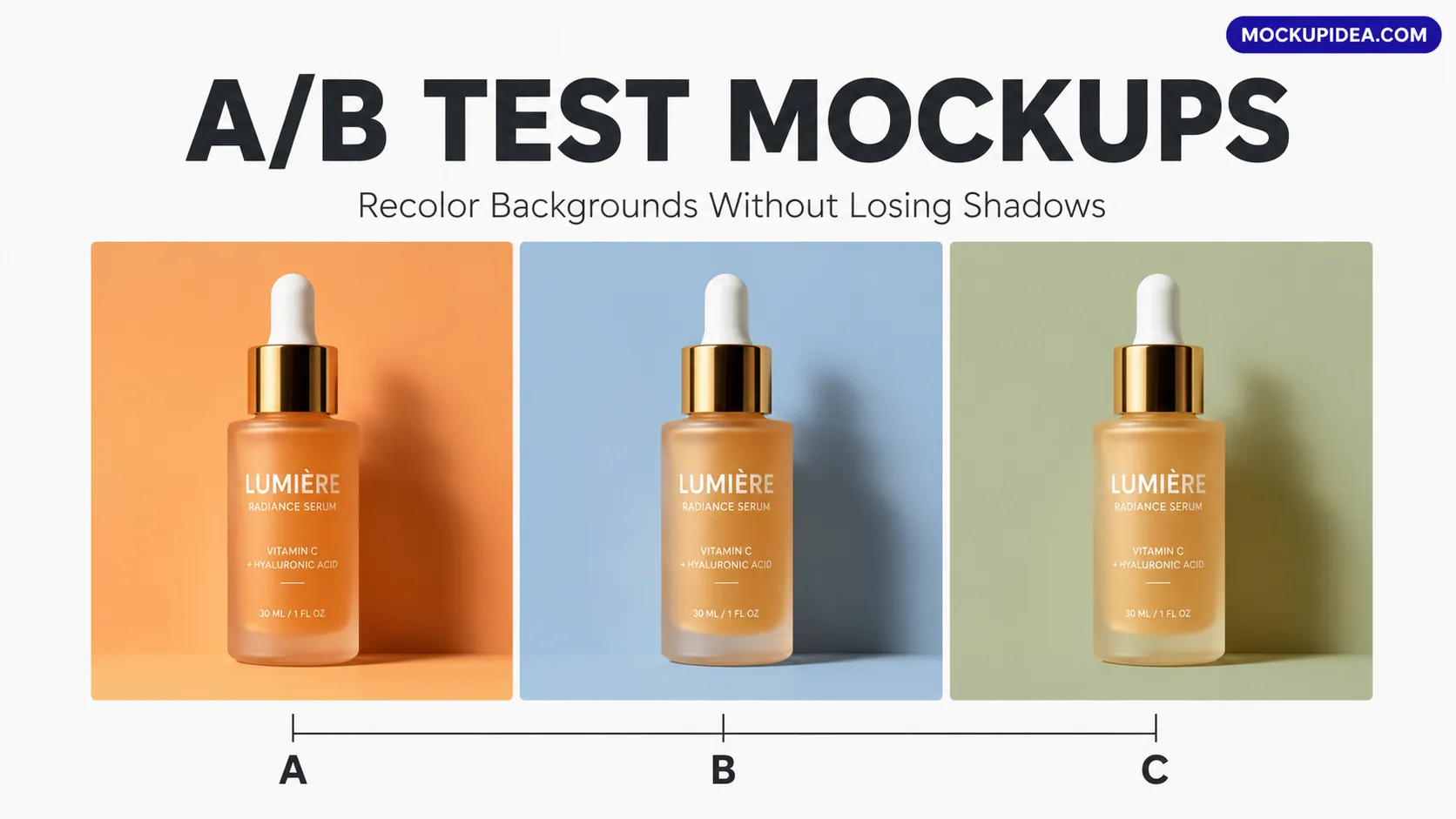
A/B Test Mockups: Recolor Backgrounds Without Losing Shadow
Changing a mockup background color for A/B testing usually destroys the realistic floor shadow or shifts the product lighting. Here is the Chameleon Method to recolor PSD backgrounds in seconds while keeping your product identical.
A
Abdul Manan
·June 25, 2026·6 min read·54
You just spent $500 testing a product ad on Facebook. The image performed okay. Your media buyer tells you: "The creative is good, but we need to test a warm orange background and a cool blue background to see which one drops the CPA lower."
You go back to your AI generator and prompt for the same mockup but with an orange background. The AI gives you a stunning image—but the lighting on the product has completely changed. The logo is slightly different. The shape of the bottle has shifted.
You put the two ads in front of the media buyer, and they are useless for A/B testing. The only variable you wanted to test was the background color, but AI regenerated the entire product.
If you try to change the background on a flat JPG in Canva, the realistic floor shadow rips apart or gets erased, making the product look like it's floating in space.
Professional ad testing requires isolating variables. Here is the exact Chameleon Method to recolor mockup backgrounds while keeping your product and shadows perfectly intact for high-converting A/B tests.
Why AI and Flat Images Ruin A/B Tests
A/B testing ad creatives only works if you change . If you change the background color AND the product lighting changes, you do not know which variable caused the conversion rate to go up or down.
AI generators cannot isolate variables. Every prompt creates a brand-new scene. The light source moves. The camera shifts. The product proportions change. Your test data is corrupted.
Flat JPGs destroy shadows. If you try to swap a white background for a blue one on a flat image, the natural shadow under the product gets erased or colorized, making the product look like a cheap cutout. Buyers subconsciously reject ads with fake-looking shadows.
The Chameleon Method solves this by using a layered PSD file where the background, the shadow, and the product live on separate layers. You change the background color while the shadow and product remain locked in place.
The Chameleon Method: Complete Tutorial
This workflow uses Photopea (the free browser editor at photopea.com) or Photoshop. It takes under 60 seconds to generate 10 color variants for your ad campaigns.
Step 1: Download a Layered PSD Mockup
Go to MockupIdea and download a PSD mockup that features a solid or gradient background behind the product. Mockups with plain studio surfaces, solid colors, or simple gradients work best for this method.
Open the PSD in Photopea. Double-click the "Place Design Here" smart object layer. Paste your label or logo artwork. Hit save.
Your product now looks perfect in the scene. Export this as Variant_A_Original.png at 2x scale. This is your control image.
Step 3: Locate the Background Layer
Look at the Layers panel on the right. Scroll down past the smart object, shadows, and product layers until you find the bottom layer. It will usually be named "Background,""Surface," or "Backdrop."
Click on that layer to select it.
Step 4: Apply the Hue/Saturation Shift
With the background layer selected, press Ctrl+U (Windows) or Cmd+U (Mac) to open the Hue/Saturation panel.
Check the Colorize box if the background is currently white or grey and you want to add a tint.
Drag the Hue slider left or right to shift the background color. You can turn a white backdrop into a warm orange, a cool blue, a sage green, or a deep navy.
Adjust the Saturation slider to make the color more vivid or more muted.
Adjust the Lightness slider to make the background darker or lighter.
Watch the main canvas. The background color changes in real-time, but your product and its realistic floor shadow remain completely untouched.
Step 5: Export Your A/B Variants
Once you find a color that fits your campaign, export the image: File > Export As > PNG, 2x scale. Name it Variant_B_WarmOrange.png.
Go back to the Hue/Saturation slider, change the hue to cool blue, and export again as Variant_C_CoolBlue.png.
Within two minutes, you have a complete set of A/B test creatives where the only variable is the background color. Your ad data will be clean, accurate, and actionable.
The Best Free PSD Mockups for Ad Testing
To use the Chameleon Method effectively, you need mockups with easily selectable, solid, or gradient background layers. Here are the best free mockups on MockupIdea for this workflow:
1. Cosmetic Cream Jar on Marble
The marble surface reacts beautifully to Hue shifts, allowing you to test warm vs. cool aesthetics for skincare ads.
Download Free PSD
2. Face Wash Tube Standing Upright
A clean, solid background that easily shifts from clinical white to soothing pastel or bold brand color for A/B testing.
Download Free PSD
3. Square Liquid Soap Pump Bottle
The neutral studio surface behind this bottle can be recolored instantly to match seasonal ad campaigns.
Download Free PSD
4. Business Card on Concrete Edge
Test which background color makes your card design pop the most for B2B lead generation ads.
Download Free PSD
Frequently Asked Questions
Can I change the background color of a mockup without Photoshop?
Yes. Photopea at photopea.com is a completely free, browser-based editor that handles PSD layers and the Hue/Saturation tool identically to Photoshop. No download or subscription required.
Why can't I just use AI to generate different background colors?
AI regenerates the entire image from scratch every time. The product lighting, shape, and logo will shift between generations, which corrupts your A/B test data. The Chameleon Method only changes the background, keeping the product identical.
What if my mockup background is pure white?
Pure white (RGB 255, 255, 255) has no color information to shift. To add color to a pure white background, select the background layer, press Ctrl+U (Windows) or Cmd+U (Mac), check the Colorize box, and then drag the Hue slider.
Why do my shadows disappear when I change the background?
This happens if the shadow is merged with the background on the same layer. Layered PSD mockups from MockupIdea separate the shadow onto its own layer. As long as you only select the background layer when adjusting the color, the shadow layer will remain untouched.
Does this method work for gradient backgrounds?
Yes. The Hue/Saturation slider shifts all the colors in the gradient simultaneously, maintaining the smooth transition while changing the overall color palette.
Stop Wasting Ad Spend on Corrupted Tests
Changing a background should not mean rebuilding the entire image. Isolate your variables. Keep your shadows intact. Run clean A/B tests that give you real data.
Browse thousands of high-resolution, properly layered free PSD mockups at MockupIdea. Every file is built with separated layers for easy background recoloring, free to download, and cleared for full commercial use.